Some FAQs may appear in more than one category. This is by design to help you find the desired FAQ easily. Please click on a FAQ category below to expand or collapse it.
Access Privileges and Opening the Brillians App (1)
Users must be authorized to have access to the Brillians App. All clinical staff, including trainees, can have access. However, the access must be explicitly granted as noted below.
New Users: If you click on the Brillians / SupraVISTA link on the CPRS Tools menu and the Application does not start, it means that you do not have privileges.
To get privileges to the Brillians App, please contact your Clinical Informatics staff (CACs). At many VAMCs, someone in the Clinical Informatics and/or other non-OIT service can grant access. At other VAMCs, access requires an OIT help ticket.
Existing Users: If you have been using Brillians but you cannot start it from the CPRS Tools menu link (or, the desktop icon) then Restart Windows (Log-off and log back in is not the same as “Restart”).
If that does not fix the issue, then it means that the Brillians installation folder is not accessible on the network. This could be a temporary network issue. Please contact your Clinical Informatics/CAC staff and/or OIT.
Yes, that is recommended. See buttons in the left pane to filter lab data.
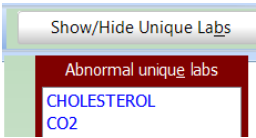
By default, Brillians Lab Review sets a filter to display abnormal labs and shows a list of labs which have been abnormal at least once in last N years (typically, 3 years)
CPRS Progress Note editor allows a maximum of 80 characters per line. If you paste text with lines longer than 80 characters, a few words of those lines will wrap to the next line creating an ugly display. Therefore, it is important that template design takes lines length into consideration. While editing a template, the character position at keyboardcursor is displayed just above the template editor.
The Local Formulary is a subset of the National Formulary. A typical local formulary has 4,000-5,000 entries, whereas the national formulary has about 20,000 entries.
The way the Windows system is designed, one app cannot slow down the other. If an App uses excessive CPU or memory, then the entire Windows system, thus ALL application, will slow down. You can verify this by looking at the CPU and memory usage in the Task Manager (that’s where you go to kill CPRS when it is frozen). The network congestion or VistA slowness are more likely causes of CPRS slowness. Nothing changes in CPRS, Brillians, or other Apps on a day-to-day basis.
What can the users do: To keep Windows healthy and up-to-speed, please RESTART Windows at least twice a week, e.g., at the end of the day on Tuesdays and Fridays. (The VA OIT recommends that you leave the computer turned on at all times.)
Note that log-off and log back into Windows does not clear the memory, device drivers, and many other accumulated internal errors like RESTART does.
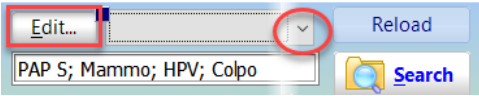
In the example below, WHC staff frequently searches for PAP; Mammo; HPV; Colpo
On t he Keyword Search Form (top panel), click the edit button as shown on the image below:
A Form will open. Follow the instructions on that Form. Afterwards you will be able to “drop in” your frequently used searches using the drop-down (red circle).
Yes, that is recommended. See buttons in the left pane to filter lab data.
By default, Brillians Lab Review sets a filter to display abnormal labs and shows a list of labs which have been abnormal at least once in last N years (typically, 3 years)
The way the Windows system is designed, one app cannot slow down the other. If an App uses excessive CPU or memory, then the entire Windows system, thus ALL application, will slow down. You can verify this by looking at the CPU and memory usage in the Task Manager (that’s where you go to kill CPRS when it is frozen). The network congestion or VistA slowness are more likely causes of CPRS slowness. Nothing changes in CPRS, Brillians, or other Apps on a day-to-day basis.
What can the users do: To keep Windows healthy and up-to-speed, please RESTART Windows at least twice a week, e.g., at the end of the day on Tuesdays and Fridays. (The VA OIT recommends that you leave the computer turned on at all times.)
Note that log-off and log back into Windows does not clear the memory, device drivers, and many other accumulated internal errors like RESTART does.